
Website backups are among the most essential safeguards for any WordPress site. Updates don’t always go as planned, plugins can clash, and unexpected issues like security breaches or server downtime can occur at any time. In those situations, having a recent backup can mean restoring your site in minutes instead of rebuilding everything from the ground up.
Traditionally, WordPress backup plugins have relied on third-party cloud services such as Google Drive or Dropbox to store off-site copies. While effective, this setup requires connecting to external accounts and managing multiple platforms simultaneously.
Backup Migration plugin introduces a different approach. It is the first WordPress backup plugin to include its own built-in cloud storage solution, BackupBliss, available at no cost. Instead of relying entirely on external providers, users can store their backups in a secure environment created specifically for WordPress data.
Automatic And Manual Backups In A Couple Of Clicks
Getting started with Backup Migration is quick and simple. After installing and activating the plugin from the official WordPress repository, you can begin creating backups right away using its pre-configured default settings. The interface is designed for ease of use, allowing you to generate a full backup with a single click.
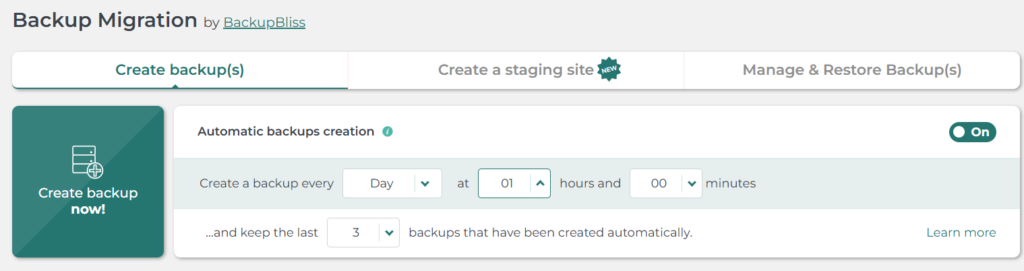
For ongoing protection, enabling scheduled backups is highly recommended. The plugin allows you to automate the process by setting up recurring backups that run quietly in the background. Many users opt for weekly full-site backups by default, though the frequency can be adjusted based on how often the site content changes.
Once scheduling is enabled, backups are created automatically at the defined intervals. These files can then be sent to your chosen storage destination, ensuring your data is safely stored outside your hosting environment.
BackupBliss Cloud Storage Connection
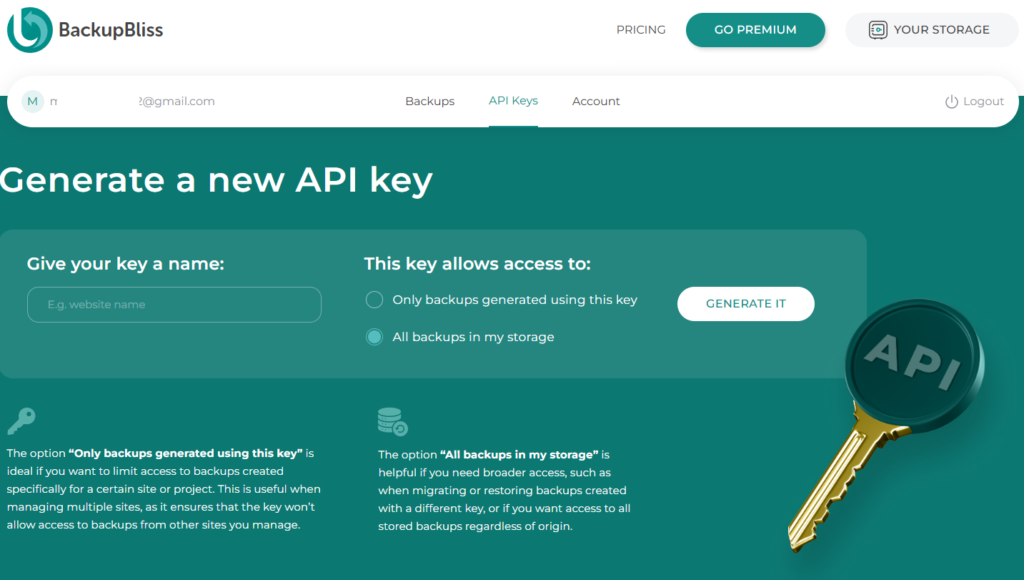
To use BackupBliss, you first need to create a free account (does not require a credit card!), which provides 1GB of storage. After signing up, you should generate an API key to securely link your cloud storage with the Backup Migration plugin.
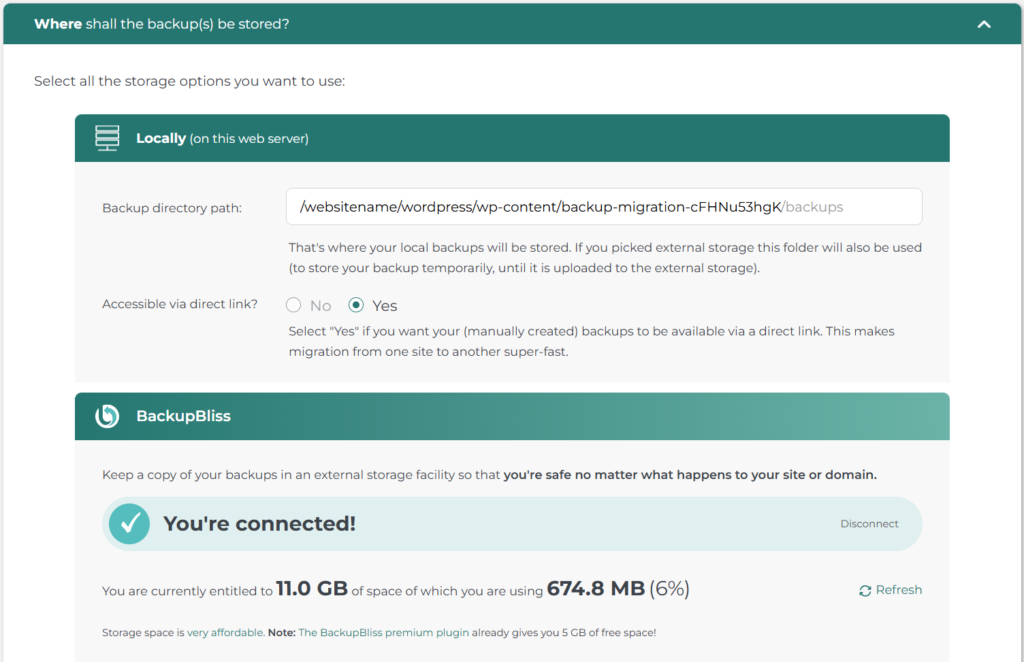
Within the plugin settings, go to the section labeled “Where shall the backup(s) be stored?”, select BackupBliss, and enter your API key to establish the connection.
From that moment on, backups will be automatically uploaded to your BackupBliss cloud space. This ensures your data remains safe and accessible, even if your website or hosting server encounters issues.
A Streamlined Way to Secure Your Site
Backups should be reliable without being complicated. With automated scheduling, an easy setup process, and integrated BackupBliss cloud storage, Backup Migration simplifies website protection.
By combining a robust backup solution with its own dedicated cloud storage, it introduces a more efficient way to handle WordPress backups. In just a few minutes, you can set up secure, automated off-site backups that continue running in the background, keeping your website protected at all times.